Drone Remote Controller
- 3.6
- Rating
- 100.00K
- Installs
- Free
- Price
 Analysis by App-foxy
I tested Drone Remote Controller as a practical way to turn an Android phone into a drone control surface, and my first impression was clear: this is a focused utility rather than a complete flying ecosystem. The app comes from kahlochSto, is free to use, and sits in the Libraries & Demo section. Its purpose is narrow, but that can be useful when your starting point is simple: you have a compatible drone, a phone running Android, and you want to see whether the handset can take over remote-control duties.
The important distinction is that the app is not a drone itself, nor does it replace the aircraft, its receiver, or every physical controller. It is a phone-based remote interface. That makes it interesting for people who want to experiment with a spare device, learn the basics of phone-controlled flight, or avoid carrying another small remote when the hardware setup supports this kind of control. It is less convincing for pilots who need a polished flight system with extensive camera tools, mapping, safety automation, or professional reliability.
From a spare phone to a usable control workflow
I’d start by treating a spare phone as a small, dedicated part of the flight setup, not as a guaranteed substitute for every remote. In this section, I’ll focus on the practical steps that make a phone-based workflow more predictable, from choosing the handset to reducing distractions. That groundwork matters most when the session gets busy, where small interruptions can quickly affect confidence.
You May Also Like

 Blood Strike: 2.5 Anniversary
Blood Strike’s Loadouts Turn Every Drop Into a Tactical Gamble
A close look at Blood Strike’s custom loadouts: how fast access to signature weapons reshapes its battle royale rhythm, rewards preparation, and narrows the gap between fights.

 Pandora - Music & Podcasts
Pandora’s Music Is Easy to Start, but Harder to Recover
Pandora’s strength is its low-effort path from a seed to a station. Its weak spot is how much confidence it asks you to place in connection, setup, and quiet recovery.

 8 Ball Pool
 Is Built on Rivalries, Rematches, and Routine
A close look at the rivalries, rematches, shared routines, and unanswered safety questions that turn a quick pool match into a persistent mobile community.

 Samsung Music
’s Quiet Strength Is Playing What You Already Own
Its reach comes less from spectacle than from dependable access to a personal library. That simplicity is both the app’s strongest retention engine and its ceiling.

 AccuWeather: Weather Radar
AccuWeather Review: A Quick, Clear Forecast for Everyday Decisions
For everyday plans, the best forecast is the one you can understand quickly. AccuWeather makes rain timing, radar, and local conditions easy to act on, with a few trade-offs.

 Hill Climb Racing
Why Hill Climb Racing Still Turns Crashes Into One More Run
A tiny car, a bumpy hill and one more upgrade: Hill Climb Racing keeps resurfacing because its simple chaos makes every near-miss feel personal.
More From Our News Desk
View All News


Beginning with the right expectations
The starting condition matters more here than it does with many ordinary apps. Before opening Drone Remote Controller, I would first identify the exact drone or toy aircraft being used and check how that model expects a phone to communicate with it. A phone controller can only work when the aircraft and the app speak the same language through the available connection method. Installing the app alone does not turn an incompatible drone into a controllable one.
That is the first practical lesson: treat this as one part of a chain. The aircraft needs power, the phone needs a supported Android release, and the connection between them must be available. The app supports Android 8.0 and later, so an older handset may be useful as a dedicated controller only if it meets that baseline. A newer phone is not automatically better, either; a device with a responsive screen and dependable wireless hardware may be more useful than a powerful phone filled with unrelated apps.
I also recommend beginning with the propellers removed whenever the aircraft design allows it. This gives you a safer way to confirm that the controls respond as expected before the motors can produce lift. It is a small habit, but it changes the first test from a potentially expensive surprise into a controlled inspection. With a phone-based controller, that extra caution is especially sensible because the feel of touch controls can differ from a compact physical remote.
Installing and preparing the phone
Drone Remote Controller is free, which lowers the barrier to trying it with an existing setup. The app has an Everyone content rating, making its presentation broadly accessible rather than aimed at a specialist adult audience. Its current version is 7.0.0, and the app was released on January 8, 2023. Those details help set expectations: this is an established utility with a defined release history, but it should still be approached as a specific controller experiment rather than as a universal answer for every drone.
For the smoothest first attempt, I would use a phone with a clean screen, a reasonable battery charge, and as few distractions as possible. Close apps that may interrupt the session, turn off unnecessary notifications, and keep the phone in a position where both thumbs can reach the controls comfortably. A phone held loosely in one hand is not a good substitute for a balanced remote, especially when the aircraft is moving.
One useful workflow is to dedicate an older but supported phone to the task. That avoids the awkward handoff between a personal phone and a flight session, and it means the controller is already configured when you need it. The trade-off is that an older device may have a less responsive touchscreen or weaker battery. I would choose consistency over raw performance, then test the screen before trusting the handset outdoors.
Connecting before attempting a flight
Once the app is open, the next stage is not simply pressing a control and hoping for movement. I would power the aircraft according to its own startup sequence, open the phone’s connection settings if needed, and then return to the app. The exact handoff depends on the drone, but the principle is the same: establish the phone-to-aircraft link first, then verify that the displayed controls correspond to the expected movements.
This is where a phone controller can feel less reassuring than a conventional remote. A physical transmitter usually gives immediate tactile confirmation because your fingers can find a stick without looking. On a touchscreen, I have to keep more attention on the display. If the connection drops or the app changes state, the lack of physical feedback can make the situation feel uncertain. I would never begin a first test at height or near people while still learning that handoff.
Keep the first connection test close and simple. With the propellers removed, move one control at a time and watch for the aircraft’s response indicators or motor behavior. Do not assume that a movement feels intuitive just because it looks familiar on screen. A control arrangement that seems obvious may still require a short adjustment period, particularly if you are accustomed to a different drone layout.
Learning the control surface
The heart of the experience is the phone screen. It gives you a visual control panel, but it also makes your fingers part of the interface. That creates a different rhythm from using a normal remote: I need to place my thumbs carefully, avoid covering important areas, and keep the handset steady while making small adjustments.
My preferred learning sequence is to rehearse the movements without takeoff first, then use the lowest-risk flight situation available. Start with tiny inputs, pause, and observe the result. Large swipes are tempting when a drone does not respond immediately, but they can turn a delayed command into an overcorrection. A phone screen rewards patience more than force.
A second non-obvious tip is to create a repeatable grip. If the phone shifts between each input, your muscle memory never settles. A simple case with a secure edge can help you hold the device consistently, although a bulky case may make edge controls harder to reach. This is a real trade-off: protection and grip are helpful, but the physical shape of the phone still determines how comfortable the app feels.
Managing the handoffs around the flight
The workflow includes several handoffs that are easy to overlook. Power moves from the charger to the aircraft and phone. The wireless connection moves from the phone’s system settings into the app. Your attention moves between the screen, the aircraft, and the surrounding space. Finally, control moves from preparation to actual flight. Each transition is a possible point of failure.
I would therefore prepare the environment before opening the app. Choose an open area, keep the aircraft within easy sight, and make sure nobody needs to borrow the phone during the session. If the phone is also your communication device, an incoming call or message can be more than an annoyance; it can divide attention at exactly the wrong moment. A spare handset makes the workflow much cleaner because the controller is not competing with everyday phone duties.
There is also a handoff between the app and the drone’s own behavior. The app may provide the input surface, but the aircraft remains responsible for how it interprets those commands. If the drone drifts, reacts slowly, or behaves differently from what you expect, the cause may not be the screen alone. Check the aircraft’s condition and setup before blaming the controller. This separation is important when deciding whether the app is suitable for a particular model.
What the result feels like in everyday use
In the right setup, the result is convenient: a phone that was already in your pocket becomes the control point for a compatible drone. That is especially appealing for casual sessions. Imagine taking a small aircraft to a quiet open space and discovering that its dedicated remote was left at home. If the phone and aircraft are compatible, Drone Remote Controller can turn that otherwise wasted trip into a usable test session.
It can also be helpful for demonstrations. A family member or beginner can see the control layout on the screen instead of trying to identify unfamiliar buttons on a tiny transmitter. For a short indoor explanation with the motors disabled, the visual approach may be easier to understand. The app’s Everyone rating fits that approachable role, although the safety of the activity still depends on the aircraft and environment, not on the age label alone.
For me, the strongest outcome is flexibility rather than sophistication. I would choose this app when the main problem is access to a controller, not when I am trying to build a serious aerial workflow. It can reduce the number of devices I need to carry and make experimentation inexpensive. It does not automatically make flying more precise, safer, or more capable than the drone itself.
Where the phone-based approach becomes limiting
The biggest friction is tactile control. Touchscreens are flat, so I cannot feel the center position or the edge of a stick with my thumb. In bright conditions, glare can make the controls harder to read. In cold weather, gloves may interfere with touch input. A physical remote remains the better option when reliable fine control matters more than convenience.
Another limitation is attention. A phone controller asks me to look at the display more often, while a conventional remote lets me keep my eyes on the aircraft and use touch alone for many adjustments. That difference becomes more important as the drone moves farther away or the surroundings become complicated. I would not select a phone interface for a demanding flight where immediate, eyes-up control is essential.
The app also should not be confused with a full drone companion platform. People looking for advanced camera management, route planning, flight logs, live mapping, or a broad collection of aircraft-specific tools may be better served by the manufacturer’s official application or a dedicated transmitter. Those alternatives may cost more or require a particular ecosystem, but they are often designed around the exact aircraft rather than around the idea of using a phone as a general controller.
Compatibility is another reason to be selective. The short description, “Drone Remote,” explains the purpose but does not by itself guarantee support for every aircraft. I would check the drone’s instructions and try the connection with the aircraft secured before planning a real flight. If your model depends on a proprietary controller or a specialized companion app, this utility may not be the right route.
Small workflow improvements that make a difference
My first improvement would be a preflight checklist written for the phone rather than only the aircraft. Confirm the battery level of both devices, remove distractions, inspect the screen, verify the connection, and rehearse the controls without lift. This takes little time and prevents the common mistake of discovering a connection or layout problem after takeoff.
Second, I would use the same orientation and grip every time. Rotating the phone between sessions can change where your thumbs land and make familiar movements feel reversed or awkward. Consistency matters more than people expect, especially when the app is being used as a substitute for a physical remote.
Third, keep a conventional backup plan. That does not necessarily mean buying another controller immediately; it can simply mean knowing how the aircraft should be shut down safely and keeping the original remote available when possible. A phone is a flexible tool, but flexibility is not the same as redundancy. If the handset becomes unavailable, the flight plan should not depend on improvisation.
Finally, separate testing from entertainment. The first session should answer practical questions: does the phone connect, do the controls behave as expected, and can I maintain attention on the aircraft while using the screen? Only after those answers are positive would I treat the app as a convenient everyday controller. This staged approach is more useful than judging it after a single rushed attempt.
How the app compares with usual alternatives
Compared with a standard physical drone remote, Drone Remote Controller wins on portability and availability. Most people already understand how to hold a phone, and a free app is easier to try than purchasing another transmitter. The screen can also make the control arrangement visible to a beginner, which is useful during a supervised introduction.
The physical remote wins on feel, dedicated controls, and reduced dependence on the phone. Its buttons and sticks can be operated without constantly checking a display, and its shape is usually designed around the aircraft. If you fly often, care about precise adjustments, or dislike touch controls, the conventional option is probably the better long-term choice.
Compared with an official drone companion app, this one is more narrowly focused. The official option may provide a better match for a particular model and may combine control with aircraft-specific information. Drone Remote Controller is more appealing when the goal is simply to explore phone control without committing to a larger software ecosystem. That simplicity is its strength, but it also defines its ceiling.
Who should try it and who should skip it
I would recommend trying Drone Remote Controller if you own a compatible small drone, have a supported Android phone, and want a free way to test phone-based control. It makes sense for casual pilots, beginners learning the relationship between inputs and movement, and anyone who wants a spare-device workflow for demonstrations or short sessions.
I would skip it if your aircraft requires a manufacturer-specific application, if you need professional-grade control, or if touchscreen input already feels uncomfortable. It is also a poor fit for anyone expecting the app to add advanced flight features to a basic aircraft. The app can provide the control interface, but it cannot change the capabilities or safety behavior built into the drone.
The public response suggests a mixed but meaningful level of interest: the app holds a 3.6 average from around 4.7 thousand ratings, with over 100 thousand installs and 517 reviews. I read that as a sign that it is worth testing for the right use case, not as proof that it will work universally. A controller app is judged by the exact pairing of phone, aircraft, connection, and pilot habits.
My final assessment after following the full workflow
Drone Remote Controller is most valuable when convenience is the problem it solves. Starting with a compatible aircraft and a supported Android phone, I can move through preparation, connection, control testing, and a cautious first flight without buying a separate app. The result is practical and approachable, especially for casual use.
Its weaknesses appear at the same points where a serious pilot needs certainty: the connection must be compatible, touch controls lack physical feedback, and the phone competes for attention with the aircraft and the environment. Those are not minor details; they determine whether the app feels helpful or frustrating.
My recommendation is to treat it as a low-cost experiment and a useful backup, not as a universal replacement for a dedicated remote. If your drone and phone cooperate, it can be a surprisingly handy bridge from “I have the aircraft but not the controller” to a short, controlled session. If your priority is precision, advanced aircraft features, or dependable operation in demanding conditions, the usual physical remote or official companion app remains the safer choice.
FAQs for Drone Remote Controller
01What devices are compatible with the Drone Remote Controller app?
The Drone Remote Controller app is compatible with both Android and iOS devices. It requires Android 6.0 or later and iOS 11.0 or later. Make sure your smartphone or tablet meets these OS requirements for optimal performance. Additionally, Bluetooth and GPS capabilities are necessary for seamless connectivity with your drone.
02Does the app support all drone models?
The app supports a wide range of popular drone models, but compatibility may vary. It's essential to check the app's description and the manufacturer's website for a list of supported drones. The app is primarily designed for models from major brands, ensuring robust connectivity and control features.
03Are there any in-app purchases or subscription fees?
The Drone Remote Controller app offers a free version with essential features. However, there are in-app purchases available that unlock advanced functionalities such as enhanced flight modes, real-time analytics, and ad-free experience. Subscription plans are also available for users seeking premium features and regular updates.
04What features does the app offer for drone control?
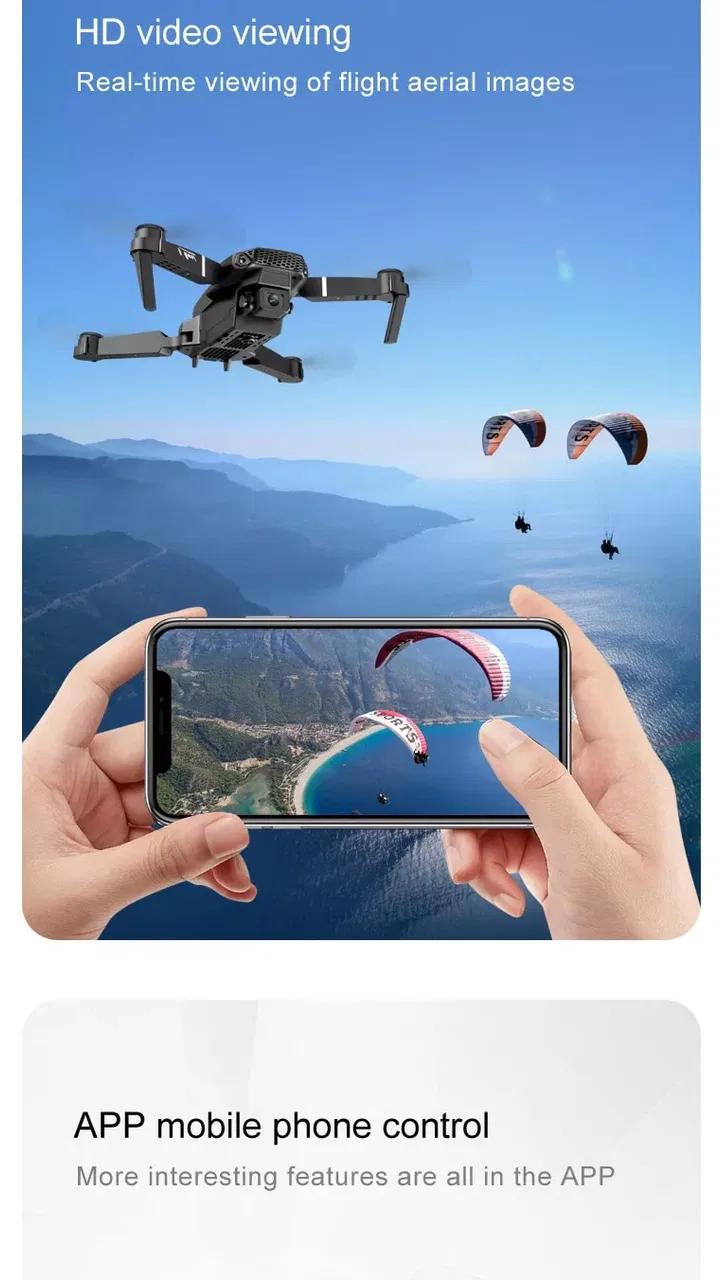
The app provides a user-friendly interface with features like real-time video streaming, GPS-based navigation, customizable flight paths, and emergency landing options. It also includes various flight modes, such as follow-me and orbit, enhancing the drone flying experience for both beginners and seasoned pilots.
05Is an internet connection required to use the Drone Remote Controller app?
An internet connection is not necessary for basic drone control, as the app uses Bluetooth for communication. However, features like map updates, cloud storage, and firmware updates do require an internet connection. It's recommended to have periodic internet access to ensure the app and drone are up to date.
Pros
- User-friendly interface for easy navigation.
- Real-time video feed with minimal lag.
- Customizable controls for personalized experience.
- Compatible with a wide range of drone models.
- Offers offline maps for remote areas.
Cons
- Requires strong internet connection for updates.
- Battery consumption is relatively high.
- Limited support for older device models.
- Some features locked behind premium access.
- Occasional connectivity issues with certain drones.

Drone Remote Controller
Gallery